Redis
This page provides information for connecting your application to your Redis database and using queries to manage its content.
Connect Redis
Appsmith does not support connection to Redis using TLS. If you are a cloud user, you should whitelist the IP address of the Appsmith deployment 18.223.74.85 and 3.131.104.27 on your database instance or VPC before connecting to a database. If you're using Redis Cloud, you can see Configure CIDR allow list for more details.
Connection parameters
The following section is a reference guide that provides a complete description of all the parameters to connect to a Redis database.
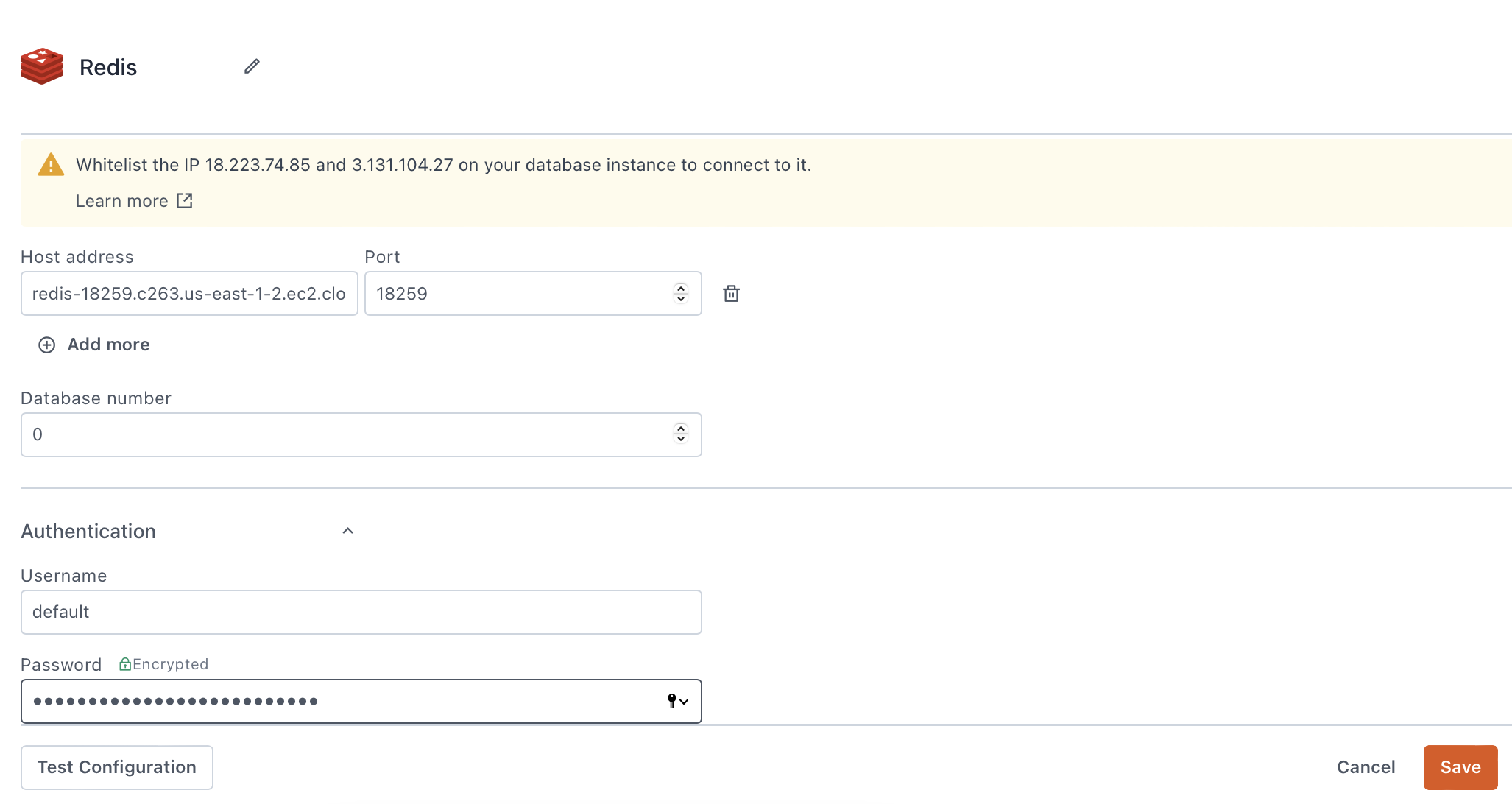
Host Address
Port
6379 by default if you do not specify one.Database Number
Username
Password
Query Redis
The following section provides examples of creating basic CRUD queries for Redis.
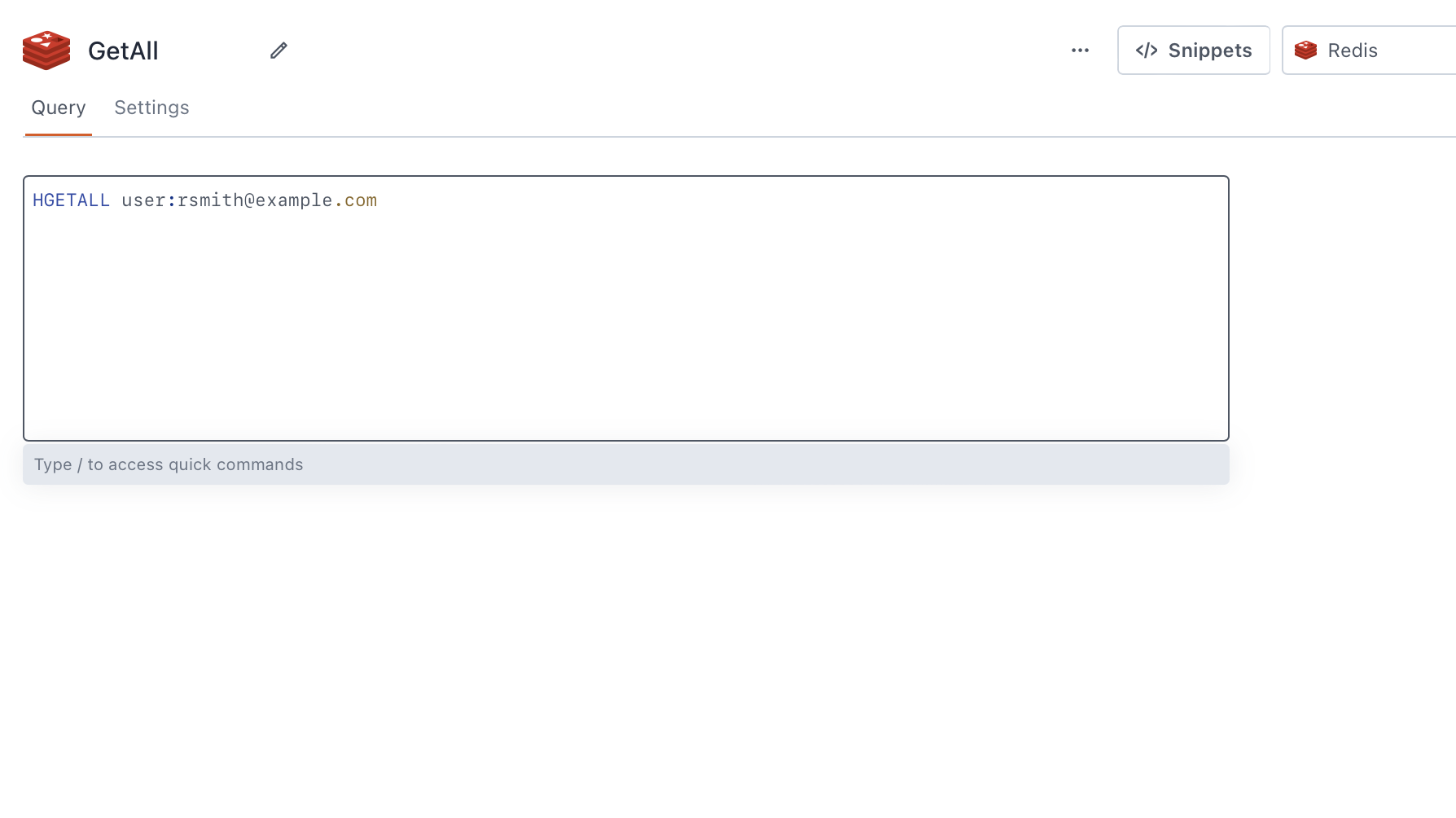
See the Redis documentation for a full list of Redis commands and how to use them.
Fetch data
HGETALL {{ SearchInput.text }}
In the above example, SearchInput is the name of an Input widget being used to collect a user's search term and send it in the query. The HGETALL command returns all keys and values of a Redis hash with a matching name if it exists.
To store a single key not in a hash, use GET:
GET {{ SearchInput.text }}
For more information on how to fetch paginated data, see Setup Server-Side Pagination on Table.
Insert data
HSET user:{{ EmailInput.text }} username {{ UsernameInput.text }} gender {{ GenderDropdown.selectedOptionVaue }}
In the above example, EmailInput, UsernameInput, and GenderDropdown are the names of Input and Select widgets being used to collect user input and send it in the query to create a Redis hash.
To insert a single key/value pair not in a hash, use SET:
SET username {{ UsernameInput.text }}
For more information on how to insert data, see Insert Data.
Update data
See Insert data above, as the syntax is identical using the HSET and SET commands. For more information on how to update Table data, see Update Data Guide.
Delete data
HDEL user:{{ EmailInput.text }} {{ FieldDropdown.selectedOptionValue }}
In the above example, EmailInput and FieldDropdown are the names of Input and Select widgets being used to collect user input that identifies which field of a given Redis hash to delete, and to send them in the query.
To delete the entire Redis hash or a single key/value pair, use DEL:
DEL user:{{ EmailInput.text }}
For information on how to delete data in a Table, see Delete Data in Table.
Troubleshooting
If you are experiencing difficulties, you can refer to the Datasource troubleshooting guide or contact the support team using the chat widget at the bottom right of this page.
See also
- Display and Lookup Data in Table - Learn how to display query results in a Table and enable users to look up data with ease.
- Search and Filter Table Data - Guide on adding search and filter functionality to Tables for better data navigation.
- Update Data - Understand how to update data in your application using Form widget.
- Insert Data - Step-by-step instructions on inserting new records into your database using Form widget.