HubSpot
This page provides information for connecting Appsmith to HubSpot and for reading and writing data in your applications.
Connection parameters
The following section is a reference guide that provides a complete description of all the parameters to connect to a HubSpot database.
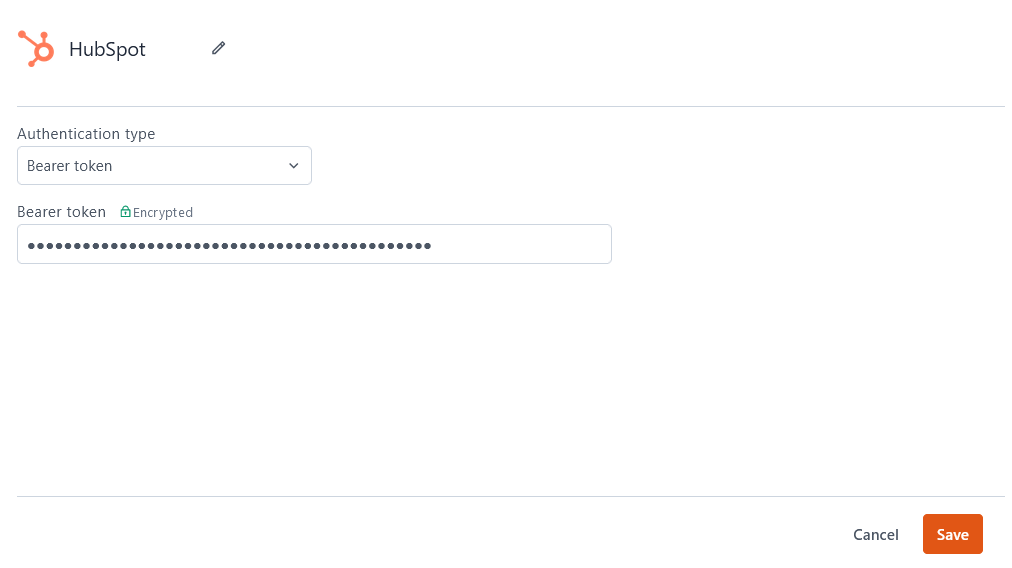
Authentication Type
- Bearer Token: An access token that authenticates your queries to HubSpot. For more information on finding your access token, follow HubSpot's Private App integration guide.
Query HubSpot
The following section is a reference guide that provides a description of the read and write operation commands with their parameters to create HubSpot queries.
HubDB
The following sections describe the parameters for connecting to HubDB type queries.
Get published tables
The HubDB - get published tables command fetches information for the HubDB tables associated with your HubSpot account. The following is a list of all the fields available for HubDB - get published tables:
Sort
name or creation time (createdAt). Requires a single field.Next Page Token
{{ GetRowsQuery.data.paging?.next.after || "" }}Limit
Created at
YYYY-MM-DDThh:mm:ss.sZ.Created after
YYYY-MM-DDThh:mm:ss.sZ.Created before
YYYY-MM-DDThh:mm:ss.sZ.Updated at
YYYY-MM-DDThh:mm:ss.sZ.Updated after
YYYY-MM-DDThh:mm:ss.sZ.Updated before
YYYY-MM-DDThh:mm:ss.sZ.Archive
true, the query only returns table data for tables that are archived.Create table
The HubDB - create table command creates a new HubDB table. The following is a list of all the fields available for HubDB - create table:
Name
Label
Use for pages
true, allows the new table to be used for creating dynamic website pages.Columns
["hello", "world", "apple"]Allow Public API access
true, allows the table to be read via public API without authorization.Allow child tables
true, allows the creation of related child tables.Allow child table pages
true, allows the creation of multi-level dynamic pages referencing the child table.Foreign table ID
Foreign table ID
Dynamic meta tags
id of 3, use: { "DESCRIPTION": 3 }Get details of a published table
The HubDB - get details of a published table command fetches data about a HubDB table. The following is a list of all the fields available for HubDB - get details of a published table:
Archived
true, the query includes data for tables that are archived.Include foreign IDs
true, the details for related child/foreign tables are included in the results.Table ID or name
ID value.Archive table
The HubDB - archive table archives a HubDB table. The following is a list of all the fields available for HubDB - archive table:
Table ID or name
ID value.Update existing table
The HubDB - update existing table command fetches rows from a HubDB table. The following is a list of all the fields available for HubDB - update existing table:
Archived
true, the query returns data only for tables that are archived.Include foreign IDs
true, the details for related child/foreign tables are included in the results.Table ID or name
ID value.Name
Label
Use for pages
true, allows the new table to be used for creating dynamic website pages.Columns
["hello", "world", "apple"]Allow Public API access
true, allows the table to be read via public API without authorization.Allow child tables
true, allows the creation of related child tables.Allow child table pages
true, allows the creation of multi-level dynamic pages referencing the child table.Foreign table ID
Foreign table ID
Dynamic meta tags
id of 3, use: { "DESCRIPTION": 3 }Clone table
The HubDB - clone table command clones an existing HubDB table. The following is a list of all the fields available for HubDB - clone table:
Table ID or name
ID value.New name
New label
Copy rows
true, copies the rows from the cloned table into the new table.Export published version table
The HubDB - export published version table command returns the file data for a HubDB table in a given format. The following is a list of all the fields available for HubDB - export published version table:
Include foreign IDs
true, the details for related child/foreign tables are included in the results.Table ID or name
ID value.Unpublish table
The HubDB - unpublish table command unpublishes a given HubDB table. The following is a list of all the fields available for HubDB - unpublish table:
Include foreign IDs
CSV, XLSX, or XLS.Table ID or name
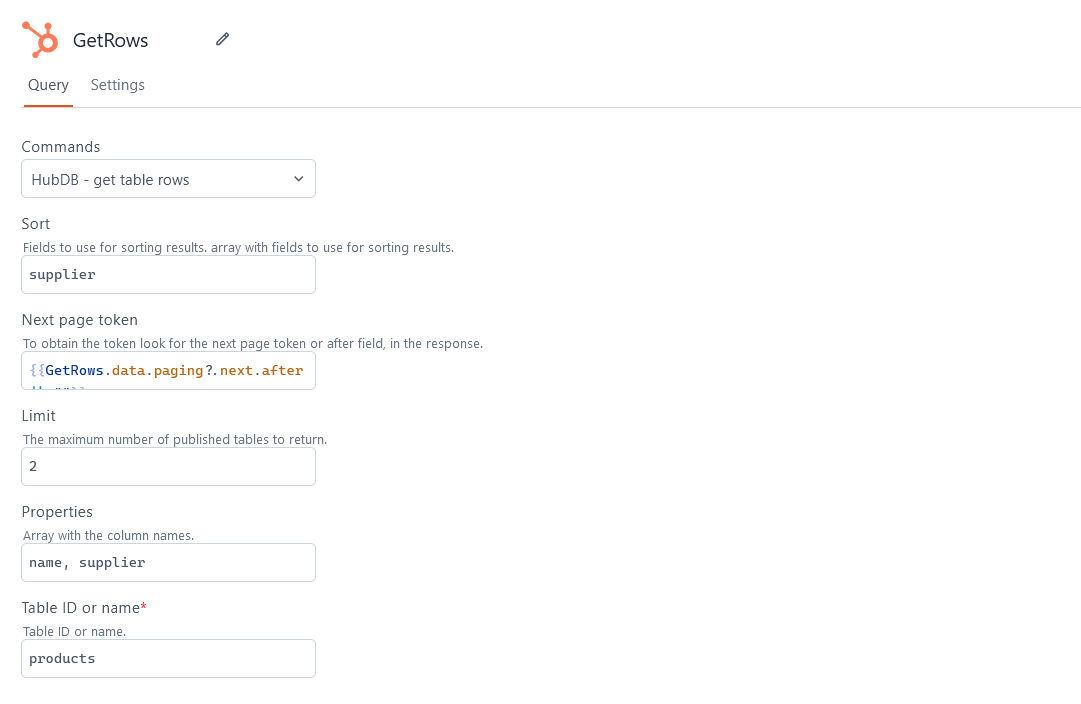
ID value.Get table rows
The HubDB - get table rows command fetches rows from a HubDB table. The following is a list of all the fields available for HubDB - get table rows:
Sort
name.Next Page Token
{{ GetRowsQuery.data.paging?.next.after || "" }}Limit
Properties
Table ID or name
ID value.Add new table row
The HubDB - add new table row command creates a new row in a HubDB table. The following is a list of all the fields available for HubDB - add new table row:
Table ID or name
ID value.Path
Name
Child table ID
ID as a string value in the JSON object of your query's Values field.Values
A JSON object with key/value pairs representing the new record. If you are creating a relationship using the Child table ID field, you can pass the ID of a corresponding record from the child table as a string value. For example, if you refer to a child table called buyer:
{
    "name": "MyProduct",
    "buyer": "121529803132"
}
Update existing row
The HubDB - update existing row command updates an existing row in a HubDB table. The following is a list of all the fields available for HubDB - update existing row:
Table ID or name
ID value.Row ID
ID of the table row that you'd like to update.Path
Name
Child table ID
ID as a string value in the JSON object of your query's Values field.Values
A JSON object with key/value pairs representing the new record. If you are creating a relationship using the Child table ID field, you can pass the ID of a corresponding record from the child table as a string value. For example, if you refer to a child table called buyer:
{
        "name": "MyProduct",
        "buyer": "121529803132"
    }
Replace existing row
The HubDB - replace existing row command replaces an existing row in a HubDB table. The following is a list of all the fields available for HubDB - replace existing row:
Table ID or name
ID value.Row ID
ID of the table row that you'd like to replace.Path
Name
Child table ID
ID as a string value in the JSON object of your query's Values field.Values
A JSON object with key/value pairs representing the new record. If you are creating a relationship using the Child table ID field, you can pass the ID of a corresponding record from the child table as a string value. For example, if you refer to a child table called buyer:
{
    "name": "MyProduct",
    "buyer": "121529803132"
}
Permanently delete row
The HubDB - permanently delete row command deletes an existing row from a HubDB table. The following is a list of all the fields available for HubDB - permanently delete row:
Table ID or name
ID value.Row ID
ID of the table row that you'd like to delete.Clone row
The HubDB - clone row command clones an existing row in a HubDB table. The following is a list of all the fields available for HubDB - clone row:
Table ID or name
ID value.Row ID
Get set rows
The HubDB - get set rows command gets a batch of specific rows from a HubDB table. The following is a list of all the fields available for HubDB - get set rows:
Table ID or name
ID value.Inputs
Permanently delete rows
The HubDB - permanently delete rows command deletes a batch of specific rows from a HubDB table. The following is a list of all the fields available for HubDB - permanently delete rows:
Table ID or name
ID value.Inputs
CRM
The following sections describe the parameters for connecting to CRM type queries.
List objects
The CRM - list objects command returns a list of entries for a given type of CRM objects. The following is a list of all the fields available for CRM - list objects:
Objects
contacts.Create object
The CRM - create objects command creates a new object of the given type. The following is a list of all the fields available for CRM - create objects:
Objects
contacts.Properties
Read object
The CRM - read object command returns the details for a specific CRM object. The following is a list of all the fields available for CRM - read object:
Properties
Properties with history
Associations
Archive
true, the query only returns entries that are archived.Object type
contacts.Object ID
Update object
The CRM - create objects command updates a given CRM object. The following is a list of all the fields available for CRM - create objects:
Object type
contacts.Object ID
Properties
Archive object
The CRM - Archive object command archives a given CRM object. The following is a list of all the fields available for CRM - Archive object:
Object type
contacts.Object ID
Search object
Object type
contacts.Property name
Value
Operator
Sorts
A sorting rule in the request body to list results in ascending or descending order. Only one sorting rule can be applied to any search. For example:
{[
      {
        "propertyName": "createdate",
        "direction": "DESCENDING"
      }
  ]}
Query
Properties
Limit
After
{{ SearchObjectQuery.data.paging?.next.after || "" }}Additional commands
In addition to HubDB and CRM command types, Appsmith also provides the following commands:
| Query Name | Description |
|---|---|
| Domains - get current domains | Returns all existing domains that have been created. |
| Domains - get single domain | Returns a single domain with the id specified. |
| URL Redirects - get current redirects | Returns all existing URL redirects. |
| URL Redirects - create redirect | Creates and configures a new URL redirect. |
| URL Redirects - get details redirects | Returns the details for a single existing URL redirect by ID. |
| URL Redirects - update redirects | Updates the settings for an existing URL redirect. |
| URL Redirects - delete redirects | Deletes one existing redirect. |
| Files - import file | Imports CRM records into your HubSpot account. |
| Files - delete file | Deletes the file at the specified path in the specified environment. |
| Files - get file | Fetches the file at the specified path in the specified environment. |
| Files - create folder | Creates a folder in the specified environment. |
| Files - search file | Searches for any file in the specified environment. |
| Files - search folder | Searches for any folder in the specified environment. |
| Files - update folder properties | Performs a partial update of a property. |
| Files - check folder update Status | Checks the status of a batch file access update task. |
| Files - get folder | Fetches the details for a specific folder. |
| Files - delete folder | Deletes a specific folder. |
| Settings - retrieve list of users | Fetches a list of authorized users. |
| Settings - add user | Adds users to your HubSpot account. |
| Settings - retrieve user | Retrieves an existing user. |
| Settings - modify user | Updates user details. |
| Settings - remove user | Removes a set of users. |
| Settings - retrieve roles account | Fetches users in your HubSpot account. |
| Settings - see details account's teams | Fetches information about the team's account. |
Troubleshooting
If you are experiencing difficulties, you can refer to the Datasource troubleshooting guide or contact the support team using the chat widget at the bottom right of this page.
See also
- Display and Lookup Data in Table - Learn how to display query results in a Table and enable users to look up data with ease.
- Search and Filter Table Data - Guide on adding search and filter functionality to Tables for better data navigation.
- Update Data - Understand how to update data in your application using Form widget.
- Insert Data - Step-by-step instructions on inserting new records into your database using Form widget.